> ## Documentation Index
> Fetch the complete documentation index at: https://mintlify.com/maravento/vault/llms.txt
> Use this file to discover all available pages before exploring further.
# NetScan
> Network scanning tool using Nmap with GUI interface for Windows and Linux
# NetScan
NetScan is a portable tool for network scanning using Nmap on Windows, with an alternative GUI frontend based on Zenity. It deploys Nmap with all its dependencies silently and unattended, and allows executing different scanning levels while generating HTML reports.
## Features
No installation required - runs directly from extraction
Automatically installs Nmap and dependencies
Generates detailed scan reports in HTML format
## Windows Version
### Download
| File | OS | Size |
| - | - | - |
| [netscan.exe (.zip)](https://mega.nz/file/2Z8ShAwD#02jFrwjB9qM55kIWZOf525s8wKGYLGDpbLd1D6O4dKc) | Windows 10/11 x64 | 78.2 MB |
### Package Contents
* Nmap - Network scanning engine
* Npcap - Packet capture library
* libxslt (xsltproc) - XSLT processor for report generation
* Microsoft Visual C++ Runtimes - Required dependencies
**Before Installation:** If you have Nmap or Npcap already installed, uninstall them before using NetScan to avoid version conflicts.
### Installation and Usage
1. Disable Antivirus, Antimalware, and SmartScreen temporarily
2. Close all applications
3. Verify system date and time are correct
4. Connect to your data network
1. Unzip `netscan.exe (.zip)` to your desktop
2. Double-click the executable
3. Accept privileged execution when prompted
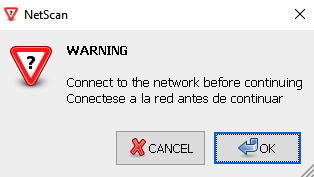
Connect to your network when prompted, then click OK to continue.
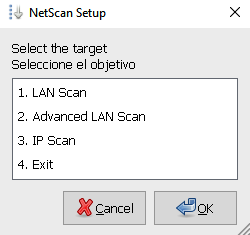
Choose the appropriate scan mode for your needs.
Manually complete the Npcap installation when prompted.
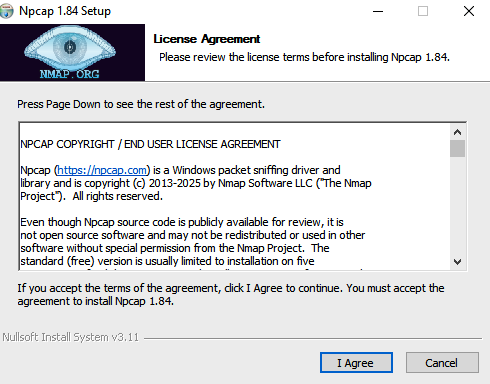
Npcap free version is included, which supports up to 5 machines. The OEM version with silent installation is not available in the free tier.
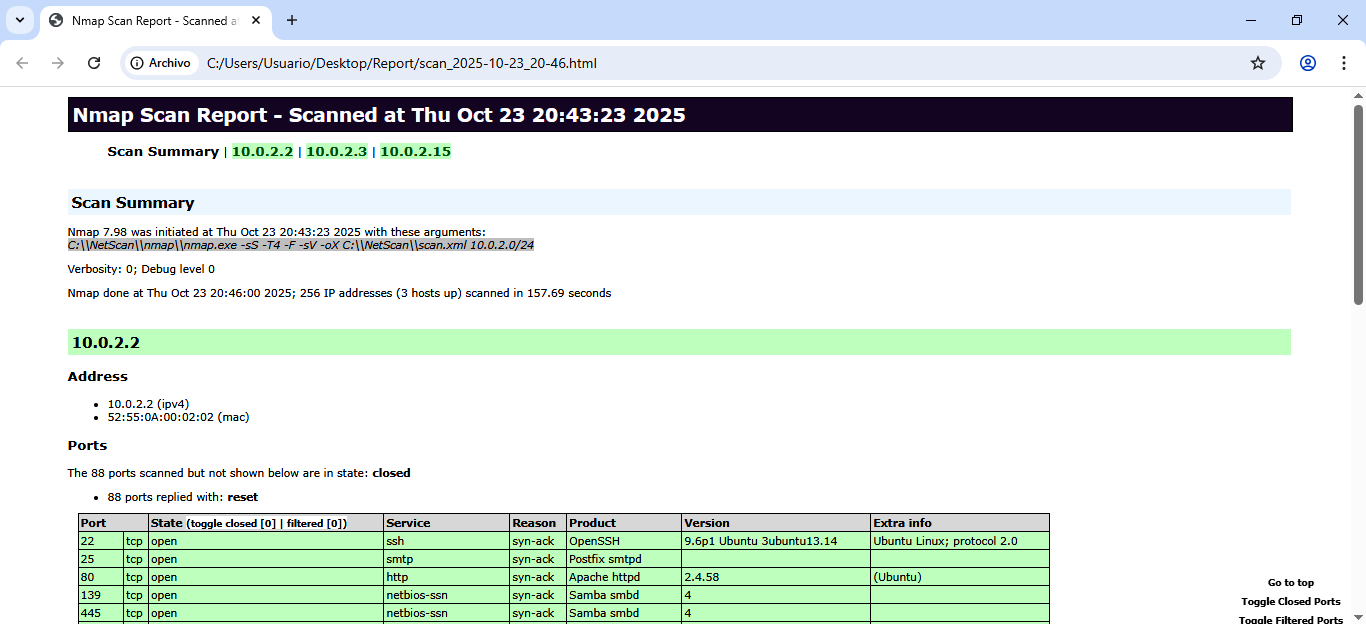
Scan reports are saved to `Desktop\Report` folder with timestamps.
## Scanning Modes
**Quick Network Discovery**
```bash theme={null}
nmap -sS -T4 -F -sV
```
* Fast network scan
* Service version detection
* Ideal for quick inventory
**Deep Network Analysis**
```bash theme={null}
nmap -sS -T4 -F -sV -sC --max-retries 3 --host-timeout 5m
```
* Deep scanning with NSE scripts
* Service enumeration
* Timeout controls
**Comprehensive Host Audit**
```bash theme={null}
nmap -sS -T4 -F -sV --version-intensity 8 -sC -O \
--script vuln --traceroute -oA scan_ip \
--max-retries 3 --host-timeout 10m
```
* OS detection
* Vulnerability scanning
* Detailed service enumeration
* Network traceroute
* Single host focus (no ranges)
## Scan Messages
| Message | Description |
| - | - |
| 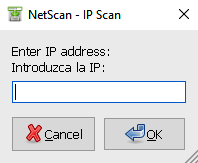 | Enter specific IPv4 (ranges not accepted) |
| 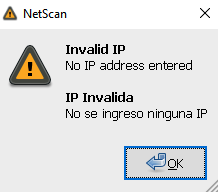 | Invalid IPv4 address entered |
| 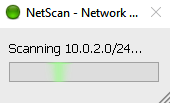 | Scanning in progress |
| 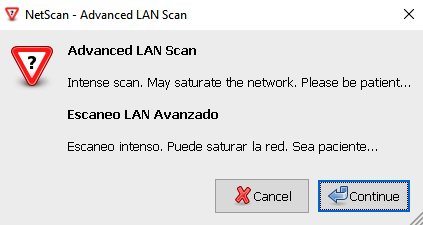 | Intense scan running |
| 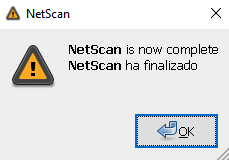 | Scan completed successfully |
| Message | Description |
| - | - |
| 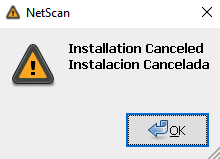 | Installation canceled or error occurred |
| 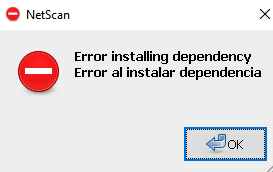 | Dependency installation failed |
| 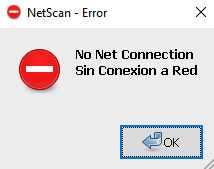 | No internet connectivity detected |
| 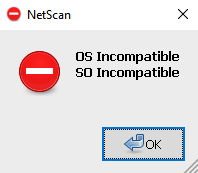 | Incompatible operating system |
| Message | Description |
| - | - |
| 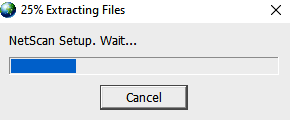 | Extracting NetScan content |
| 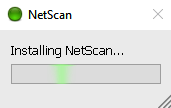 | Installing MS Visual C++ Runtimes |
## Linux Version
NetScan can run on Linux with the same three scan modes. Reports are saved to `/home/$USER/Report` with timestamps.
### Quick Start
```bash theme={null}
# Download and run
wget -q https://raw.githubusercontent.com/maravento/vault/master/netscan/linux/netreport.sh -O netreport.sh
chmod +x netreport.sh
sudo ./netreport.sh
```
### Scan Options
1. **LAN Scan** - Fast network discovery
2. **Advanced LAN Scan** - Deep network analysis
3. **IP Scan** - Comprehensive single-host audit
## Output Reports
Reports are saved with timestamps for easy tracking:
**Windows:** `Desktop\Report\`\
**Linux:** `/home/$USER/Report/`
**Filename format:**
```
scan_type_YYYY_MM_DD_HH_MM_SS.html
```
## About Npcap Licensing
NetScan includes Npcap's free version, which:
* Allows use on up to 5 machines
* Does not support silent installation (`/S` option)
* Requires manual installation during setup
For OEM licensing with silent installation support, see [Npcap OEM](https://npcap.com/oem/).
## Telemetry
NetScan sends anonymous installation completion data for statistical purposes only. No personal data is collected.
**Example telemetry:**
```
Package Installation
Hostname=DESKTOP-AJ4JSC8
User=User
Date=mié. 13/11/2024 Time= 6:44:17,39
Status=Installed
Package: NetScan
```
## System Requirements
### Windows
* **OS:** Windows 10/11 x64
* **Privileges:** Administrator rights required
* **Network:** Active network connection
### Linux
* **OS:** Ubuntu/Debian-based distributions
* **Privileges:** sudo access required
* **Dependencies:** Nmap (auto-installed)
## Additional Resources
Official Nmap reference and guides
Npcap installation and usage
This documentation is built and hosted on [Mintlify](https://mintlify.com), a developer documentation platform.