> ## Documentation Index
> Fetch the complete documentation index at: https://mintlify.com/maravento/vault/llms.txt
> Use this file to discover all available pages before exploring further.
# Trek
> SQL database rescue tool for damaged databases that cannot be exported by traditional methods
**Deprecated:** This project has reached End-of-Life (EOL) / End-of-Support (EOS). No longer supported or updated.
# Trek
Trek is a SQL database rescue tool designed for situations where database damage prevents export using traditional methods. It provides both SQL dump and raw database file backup/restore capabilities.
## Overview
Trek offers two approaches to database backup and recovery:
Export/import MySQL databases in `.sql` format using mysqldump
Copy raw database files from `\mysql\data` folders using Robocopy
## Download
| File | OS | Size |
| - | - | - |
| [trek.exe (.zip)](https://raw.githubusercontent.com/maravento/vault/master/trek/trek.zip) | Windows 7/10 x86 x64 | 3.6 MB |
## Installation
1. Disable Antivirus, Antimalware, and SmartScreen temporarily
2. Close all applications
3. Verify system date and time are correct
1. Unzip `trek.exe (.zip)` to your desktop
2. Double-click the executable
3. Accept privileged execution when prompted
Choose between DUMP or RAW mode based on your needs.
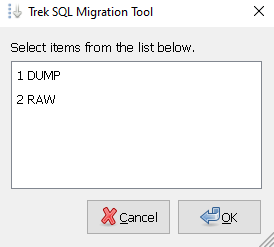
## DUMP Mode
### Backup Database
Export a database to `.sql` format.
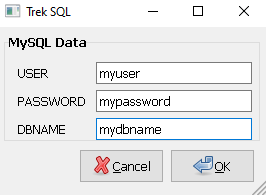
**Steps:**
1. Click **BACKUP** button
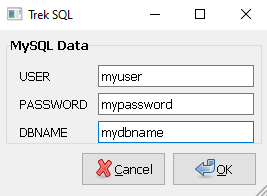
2. Enter MySQL connection details:
* Username
* Password
* Database name
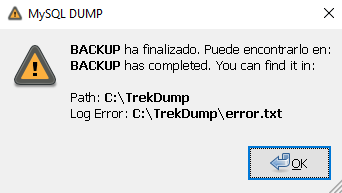
3. Wait for export to complete
4. Check `error.txt` for any issues
**Output location:**\
`c:\TrekDump\dbname_YYYY_MM_DD_HH_MM_SS.sql`
### Restore Database
Import a database from `.sql` file.
**Steps:**
1. Click **RESTORE** button
2. Select the `.sql` file location
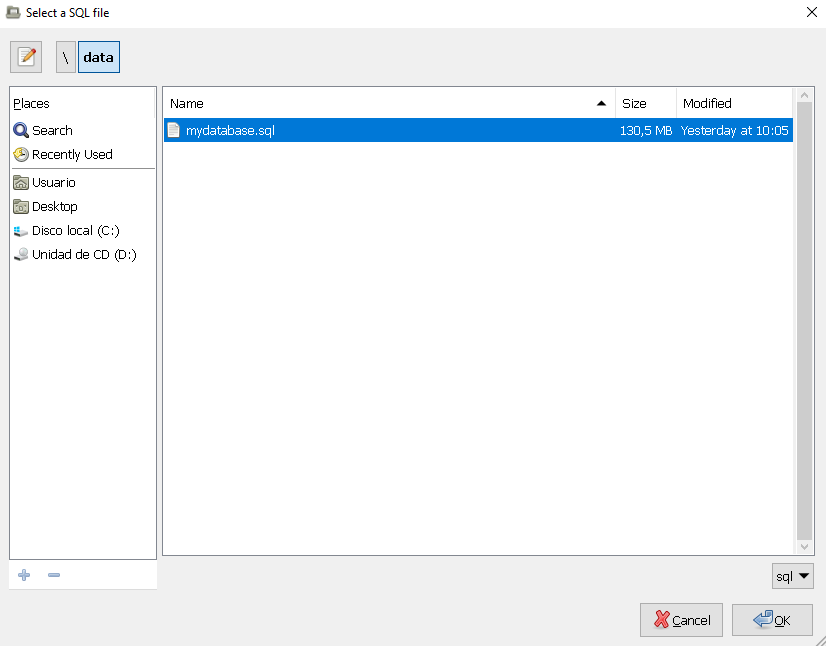
3. Enter MySQL connection details:
* Username
* Password
* Target database name
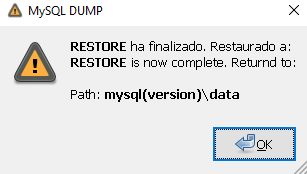
4. Wait for import to complete
### DUMP Mode Requirements
**Important:** MySQL service must be running before using DUMP options.
Create a MySQL user with maximum privileges. Do not use the `root` user.
```sql theme={null}
CREATE USER 'backup_user'@'localhost' IDENTIFIED BY 'password';
GRANT ALL PRIVILEGES ON *.* TO 'backup_user'@'localhost';
FLUSH PRIVILEGES;
```
If importing large `.sql` files, you may encounter:
```
ERROR 2006 (HY000) at line NUMBER: MySQL server has gone away
```
**Solution:** Increase the `max_allowed_packet` parameter in `my.cnf` or `my.ini`:
```ini theme={null}
max_allowed_packet = 100M
```
* The `.sql` file must not contain spaces or special characters
* Use underscores instead: `my_database_backup.sql`
Trek handles database creation intelligently:
* If `.sql` file contains `CREATE DATABASE`, existing database is preserved
* Otherwise, Trek creates the database automatically
```bash theme={null}
A database already exists in the file: dbfile.sql
The database will not be created: dbname
# or
There is no database in the file: dbfile.sql
The database will be created: dbname
```
MySQL displays a warning because the password is entered on the command line:

This is expected behavior and can be safely ignored.
## RAW Mode
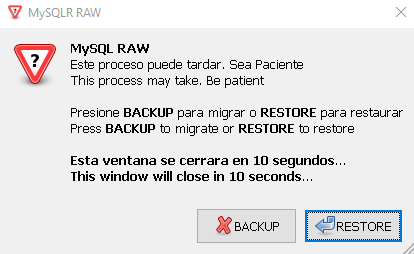
Copies raw MySQL database files from `\mysql\data` to `%HOMEDRIVE%\TrekRAW` using Windows Robocopy.
### RAW Mode Process
Browse to your MySQL installation folder.
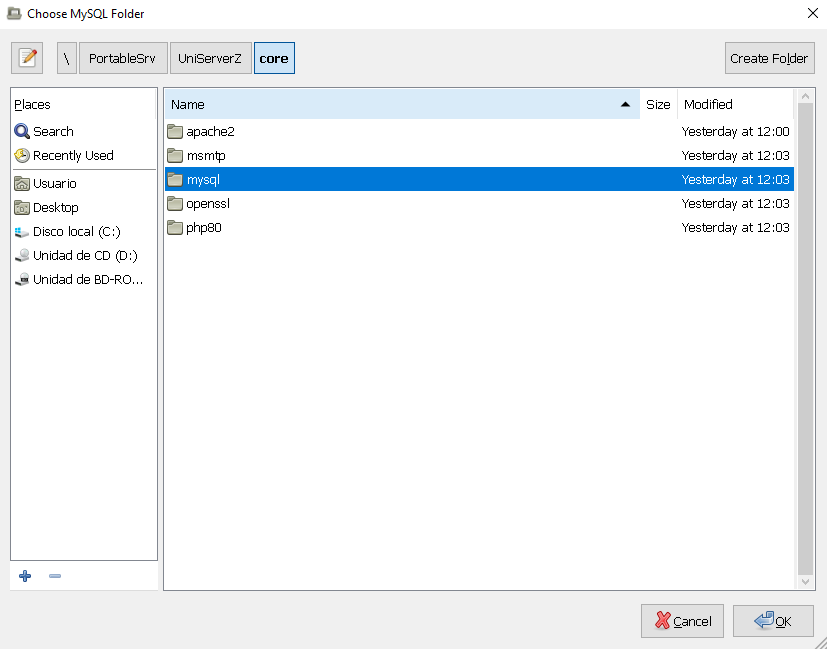
**Common MySQL paths:**
```bash theme={null}
Wamp: \wamp64\bin\mysql\mysql(version)
Xamp: \xampp\mysql
UZero: \UniServerZ\core\mysql
MySQL Server (zip): \mysql\mysql(version)
MySQL Community: \Program Files\MySQL\MySQL(version)
```
* **BACKUP:** Copies from MySQL data folder to `c:\TrekRAW`
* **RESTORE:** Copies from `c:\TrekRAW` to MySQL data folder
Review the `Trek.txt` file on your desktop for operation details.
Manually start the MySQL Server service after completion.
### RAW Mode Important Notes
**Critical Limitations:**
* Do not migrate databases with different structures
* SSL-related files (\*.pem) are excluded and may cause access issues
* Uses Robocopy which has limitations
* Use at your own risk
**SSL Certificate Warning:**
RAW mode excludes SSL certificate files (.pem) because they are unique to each installation. After RESTORE, you may have issues accessing encrypted content.
[More information](https://dba.stackexchange.com/a/267757/208609)
### TrekRAW Folder
The `TrekRAW` folder is automatically created at:
```
c:\TrekRAW
```
All backup and restore operations work within this folder.
## Supported Stacks
Trek works with all major Windows-based MySQL stacks:
Full WAMP stack support
Complete XAMPP compatibility
UniServerZ support
Also supports:
* MySQL Server (no-install .zip package)
* MySQL Community Server
## Tools Used
Trek leverages proven Windows and MySQL tools:
* **MySQL Dump** - Official MySQL backup utility
* **Robocopy** - Windows robust file copy utility
* **WinZenity** - GUI dialog interface
* **7zSFX Builder** - Self-extracting archive creation
## Use Cases
When MySQL databases are corrupted and standard tools fail, Trek's RAW mode can copy the underlying data files for recovery attempts.
RAW mode provides fast database migration between identical MySQL versions without going through dump/restore.
When normal backup tools are unavailable or failing, Trek provides an alternative backup method.
Copy databases without requiring MySQL to be running (RAW mode only).
## Troubleshooting
### DUMP Mode Issues
| Problem | Solution |
| - | - |
| Server gone away | Increase `max_allowed_packet` in my.cnf/my.ini |
| Permission denied | Create user with full privileges |
| Database not found | Check database name spelling |
| Connection failed | Verify MySQL service is running |
### RAW Mode Issues
| Problem | Solution |
| - | - |
| Files locked | Stop MySQL service before operation |
| Permission denied | Run Trek with administrator privileges |
| Incomplete copy | Check disk space and permissions |
| SSL errors after restore | Regenerate SSL certificates or disable SSL |
## Best Practices
Test backups on a separate system before relying on them for production recovery
Always verify backup integrity by testing restoration
Keep track of MySQL versions for RAW mode compatibility
Don't wait for emergencies - establish regular backup schedules
**Deprecated Tool:** While Trek still works, consider modern backup solutions for production environments. Trek is best suited for emergency recovery scenarios.
This documentation is built and hosted on [Mintlify](https://mintlify.com), a developer documentation platform.