> ## Documentation Index
> Fetch the complete documentation index at: https://mintlify.com/maravento/vault/llms.txt
> Use this file to discover all available pages before exploring further.
# UniOPOS
> Preconfigured installation package for uniCenta oPOS Point of Sale system
**Deprecated:** This project has reached End-of-Life (EOL) / End-of-Support (EOS) due to uniCenta oPOS 5.x changes. No longer supported or updated.
# UniOPOS
uniOPOS is a preconfigured installation package of uniCenta oPOS for Points of Sales (POS/ERP Open Source). It bundles uniCenta oPOS with complete web server stacks and database systems for easy deployment.
## Migration Notice
This project is deprecated due to uniCenta oPOS 5.x. For migration information, see:
[uniCenta-oPos-5.0-Migration-Guide.pdf](https://raw.githubusercontent.com/maravento/vault/master/uniopos/resources/docs/uniCenta-oPos-5.0-Migration-Guide.pdf)
## Windows Installation
### Download
| File | OS | Size |
| - | - | - |
| [uniOPOS.exe (.zip)](https://mega.nz/file/vUUTXarT#w5UQlnc-KkzCIlqsBqmk6wjY6_r-zhAQEIxkYQO6Ov8) | Windows 7/8/10/11 x64 | 1.58 GB |
### Installation Options
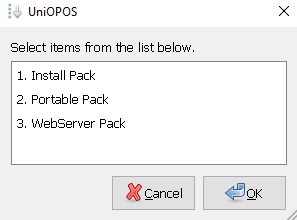
uniOPOS provides three installation packages:
**uniCenta oPOS + WampServer**
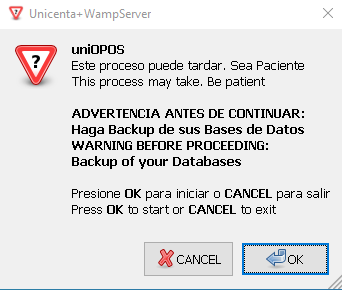
**Contents:**
* uniCenta oPOS v4.6.4 (.exe)
* WampServer v3.3.0 x64 - Update 3.3.6
* Apache 2.4.54.2
* PHP 7.4.33 / 8.0.26 / 8.1.13 / 8.2.0
* MySQL 5.7.40 / 8.0.31
* MariaDB 10.10.2
**Requirements:**
* Windows 10/11 x64 only
* Port 80 free for Apache/phpMyAdmin
* Root access without password (must create one)
**uniCenta oPOS + Uniform Server Zero**
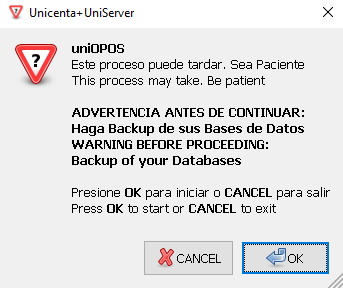
**Contents:**
* uniCenta oPOS v4.6.4 (no installer)
* Uniform Server ZeroXV v15.0.2
* Additional modules:
* adminer v4.8.3
* mysql autoback v1.0.2
* uniservice v2.5.2
* MySQL v5.7.37 from ZeroIV
**Installation Path:**
`%HOMEDRIVE%\PortableSrv\`
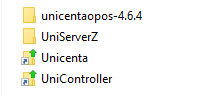
**uniCenta oPOS WebServer + MySQL**
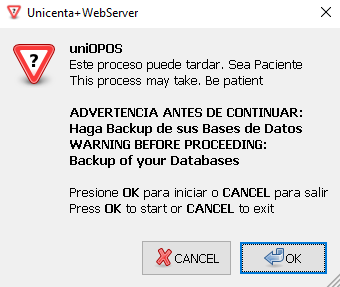
**Contents:**
* uniCenta oPOS WebServer v4.6.4
* HeidiSQL v12.8 x64 Portable
* MySQL Server v5.7.44 x64 (no-install package)
**Default Credentials:**
* User: `admin`
* Password: `pwd`
* Access: [http://localhost/phpmyadmin](http://localhost/phpmyadmin)
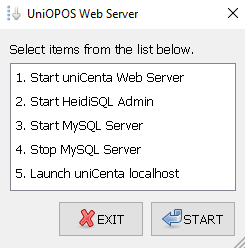
## Installation Process
1. Disable Antivirus, Antimalware, and SmartScreen
2. Close all applications
3. Verify system date and time
4. **Backup existing installations** if upgrading
1. Unzip `uniOPOS.exe (.zip)` to desktop
2. Double-click executable
3. Accept privileged execution
Choose Install, Portable, or WebServer package based on your needs.
Dependencies will install automatically:
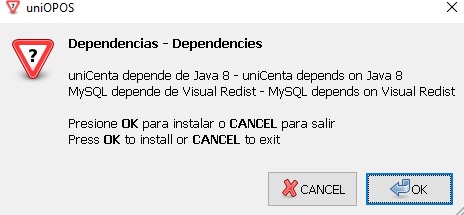
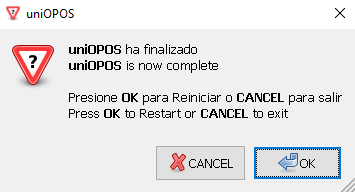
Installation complete message will appear:
## Dependencies
### Java Runtime
uniCenta oPOS requires Java 8:
```
Oracle Java 8 Update 421 x86 x64
```
### Visual C++ Redistributables
Required for MySQL Server v5.7.x:
```
Microsoft Visual Basic/C++ Runtime x86
Microsoft Visual C++ 2005-2022 Redistributable x86 x64
```
## Database Configuration
uniCenta oPOS v4.x only uses MySQL Server v5.7.x (recommended by developers).
**Port Configuration:**
Always verify the port in uniCenta oPOS Control Panel matches MySQL:
```
jdbc:mysql://localhost:3306/
```
If using MariaDB (not recommended), edit your `.sql` file:
Replace:
```sql theme={null}
ROW_FORMAT=COMPACT;
```
With:
```sql theme={null}
ROW_FORMAT=DYNAMIC;
```
* **Install/Portable:** phpMyAdmin included
* **WebServer:** HeidiSQL included
Both packages support database migration from uniCenta oPOS 3.0+ and Openbravo POS 2.30
```ini theme={null}
innodb_log_file_size = 512M
innodb_log_buffer_size = 32M
innodb_strict_mode = 0
max_allowed_packet = 128M
```
## Java 8 Configuration
### TLS Issues with MySQL
Java 8 (after April 2021) disables TLS 1.0/1.1 by default, causing connection errors:
```
com.mysql.jdbc.exceptions.jdbc4.CommunicationsException:
Communications link failure
Error: javax.net.ssl.SSLHandshakeException: No appropriate protocol
(protocol is disabled or cipher suites are inappropriate)
```
Downgrade to Java SE Runtime Environment 8u211:
[Download Java 8u211](https://www.oracle.com/ca-en/java/technologies/javase/javase8u211-later-archive-downloads.html)
Or add to connection string:
```
?useSSL=no
```
Edit `java.security` file (as administrator):
```
Program Files\Java\jre-1.8(XXX)\lib\security\java.security
```
Comment out the SSL line:
```properties theme={null}
# jdk.tls.disabledAlgorithms=SSLv3, TLSv1, TLSv1.1, RC4, DES, MD5withRSA, \
# DH keySize < 1024, EC keySize < 224, 3DES_EDE_CBC, anon, NULL, \
# include jdk.disabled.namedCurves
```
Save and reboot.
Add TLS version to connection string:
**Before Connector/J 8.0.28:**
```
jdbc:mysql://localhost:3306/database_name?enabledTLSProtocols=TLSv1.2
```
**Since Connector/J 8.0.28:**
```
jdbc:mysql://localhost:3306/database_name?tlsVersions=TLSv1.2
```
### IPv4 Configuration
Prevent Java from using IPv6 stack:
```cmd theme={null}
setx _JAVA_OPTIONS -Djava.net.preferIPv4Stack=true
```
## WebServer Configuration
### Remote Access
To access uniCenta oPOS WebServer from other computers:
Configure static IP on your server
Edit `\unicenta-webserver\jetty.properties`:
```properties theme={null}
# Change localhost to your server IP or 0.0.0.0
org.webswing.server.host=localhost
# Change the port if needed
org.webswing.server.http.port=8080
```
Activate "Allow Server Printing" in settings:
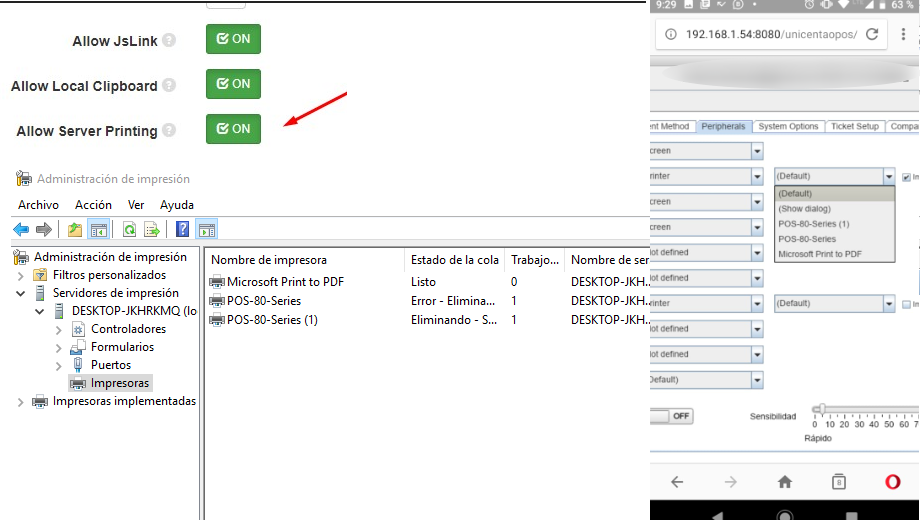
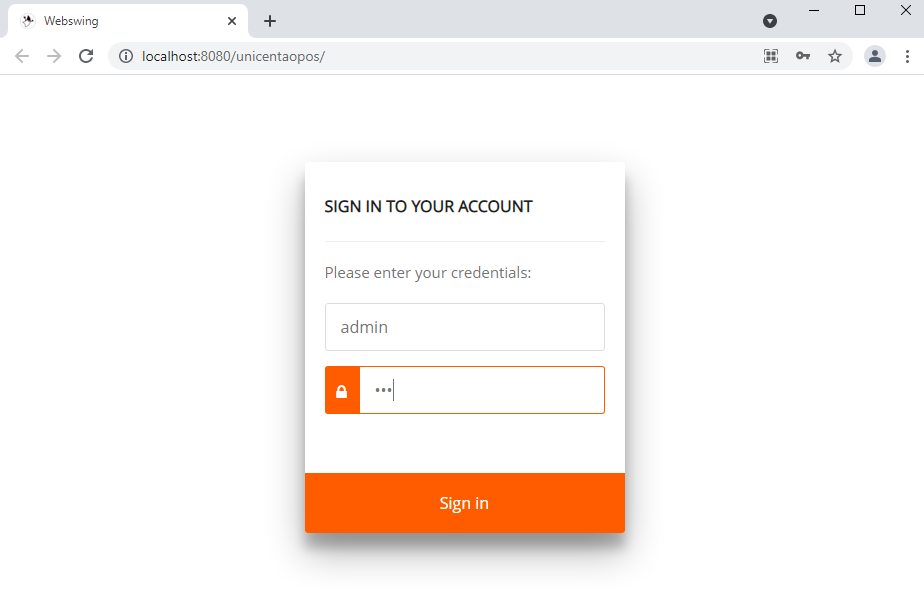
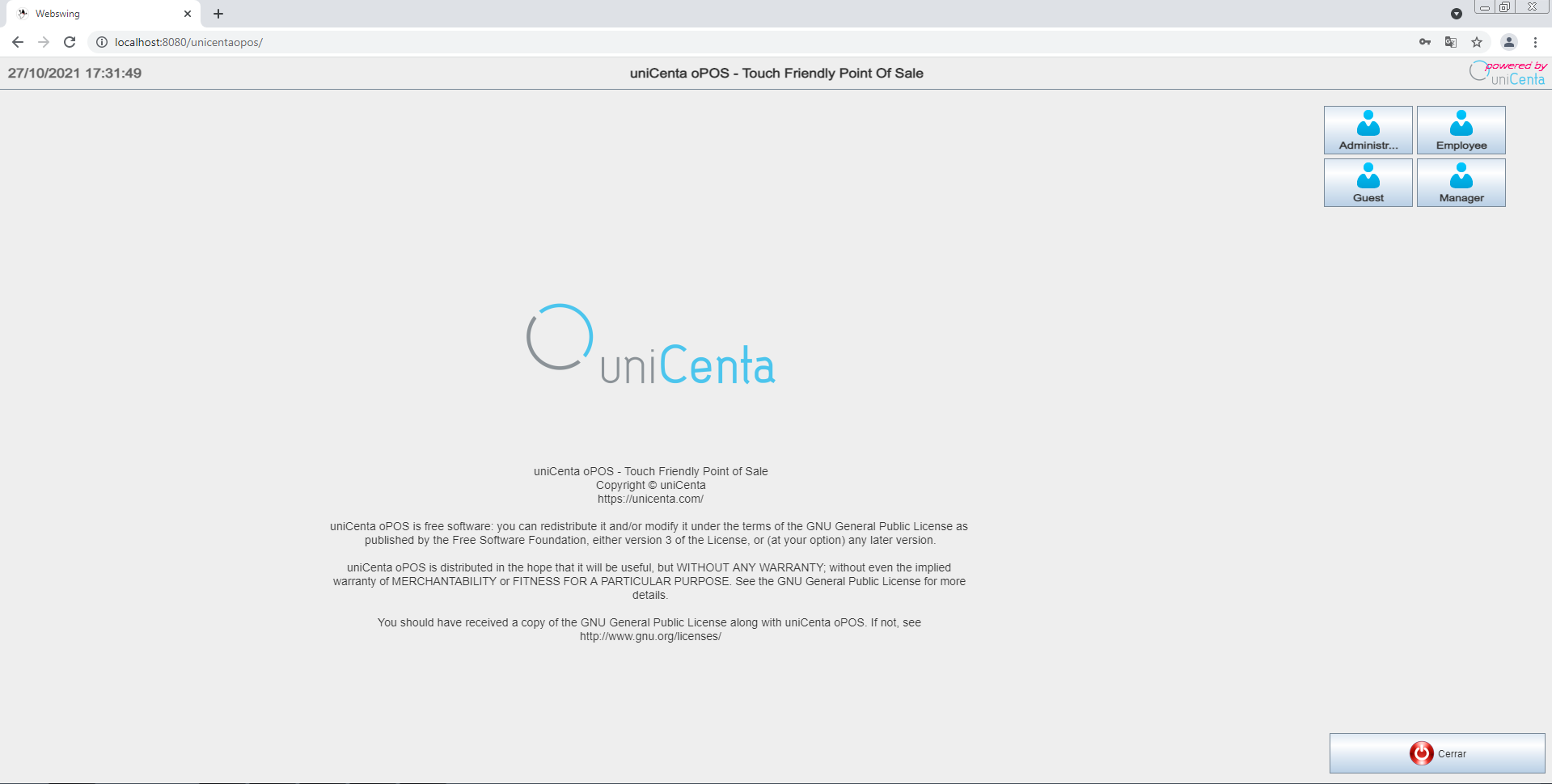
**Access Examples:**
## Linux Installation
### Quick Start
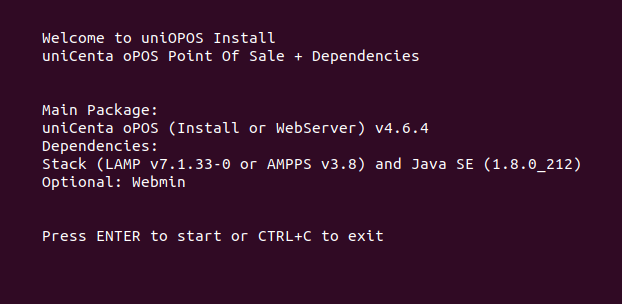
```bash theme={null}
wget -c -q https://raw.githubusercontent.com/maravento/vault/master/uniopos/resources/scripts/uniopos.sh
sed -i "s:your_user:$USER:g" uniopos.sh
sudo chmod +x uniopos.sh
sudo ./uniopos.sh
```
### Linux Package Options
**Recommended for Linux**
* Bitnami LAMP v7.1.33-0 x64
* MySQL Server v5.7.28 (do not update)
* phpMyAdmin included
* Default user: `root`
* Default password: `lampstack`
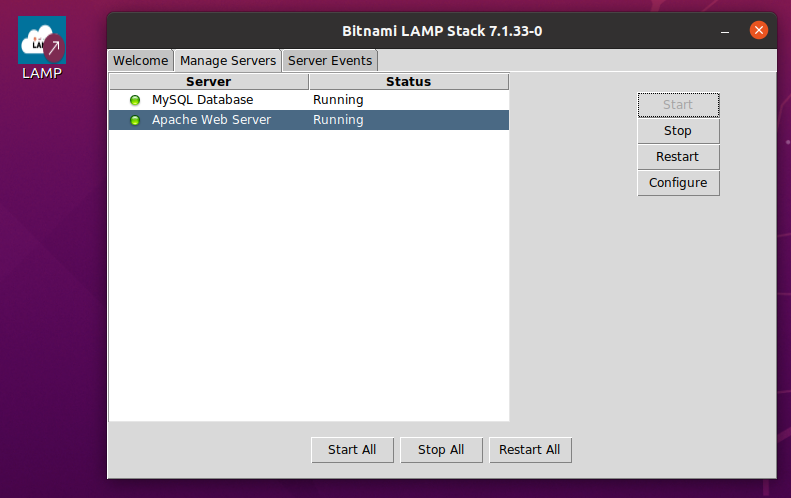
**Control commands:**
```bash theme={null}
sudo /opt/bitnami/ctlscript.sh restart mysql
sudo /opt/bitnami/ctlscript.sh restart apache
```
**Alternative Linux Stack**
* AMPPS v3.8
* MySQL Server v5.6.37 (older version)
* May show compatibility warnings
* Default MySQL user: `root`
* Default MySQL password: `mysql`
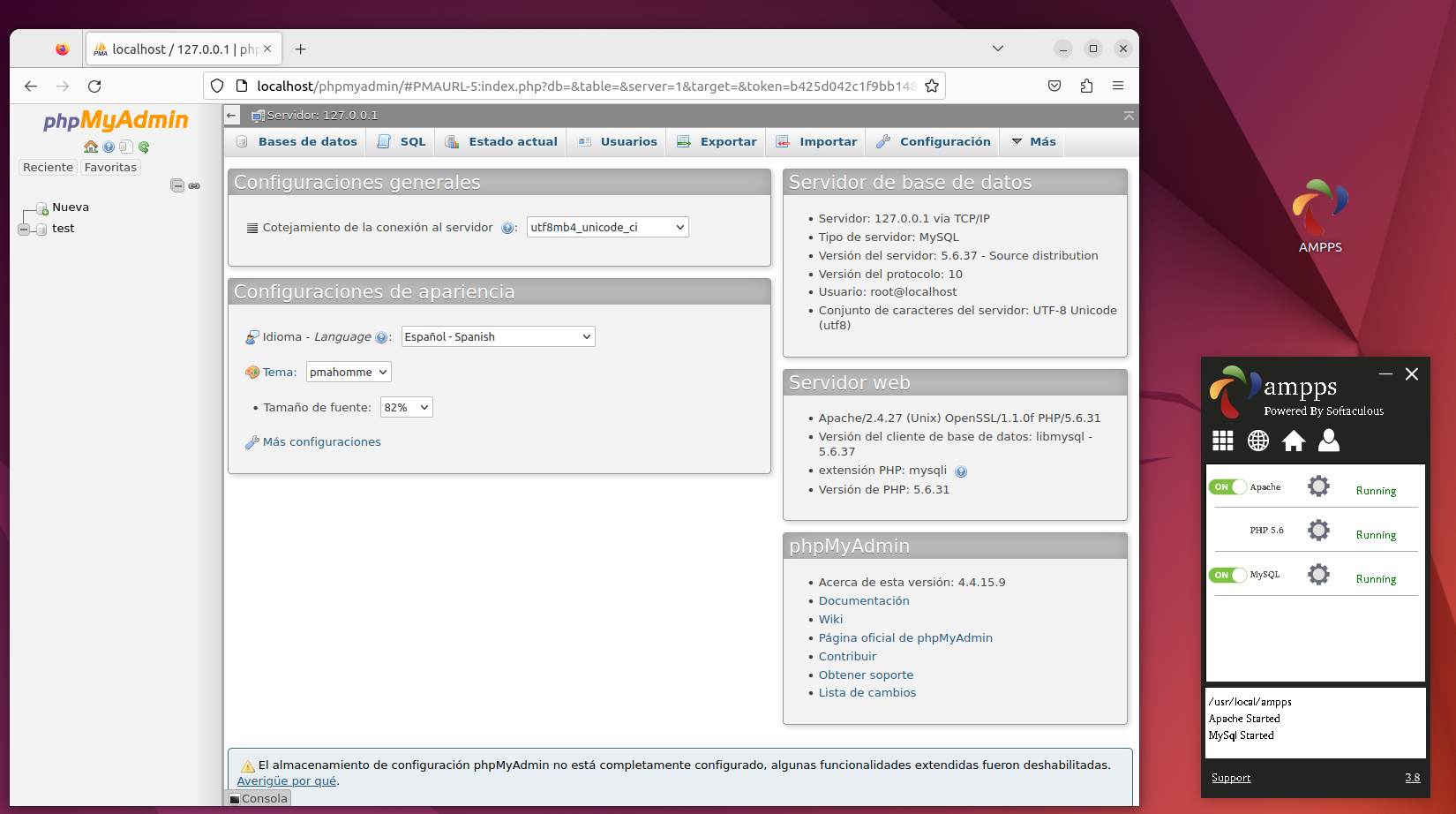
**Control commands:**
```bash theme={null}
# Start
sudo /usr/local/ampps/apache/bin/httpd
sudo /usr/local/ampps/mysql/bin/mysqld
# Stop
sudo killall httpd
sudo killall mysqld
```
### Linux uniCenta oPOS
Start from desktop shortcut or command line:
```bash theme={null}
# Start uniCenta oPOS
sudo /opt/unicentaopos-4.6.4/start.sh
# Stop
sudo pkill -f 'java'
```
Run uniCenta oPOS WebServer:
```bash theme={null}
# Start
sudo /opt/unicenta-webserver/run.sh
# Access in browser:
# http://localhost:8080/unicentaopos/
# Stop
sudo pkill -f 'java'
```
When using WebServer, only enable MySQL Server, not Apache (Jetty is included).
### Tested On
| Distribution | Default User | Default Password | phpMyAdmin |
| - | - | - | - |
| Ubuntu 20.04/22.04 x64 | root | lampstack / mysql | [localhost/phpmyadmin](http://localhost/phpmyadmin) |
## Troubleshooting
Java 8 is a third-party repository and may show error reports:
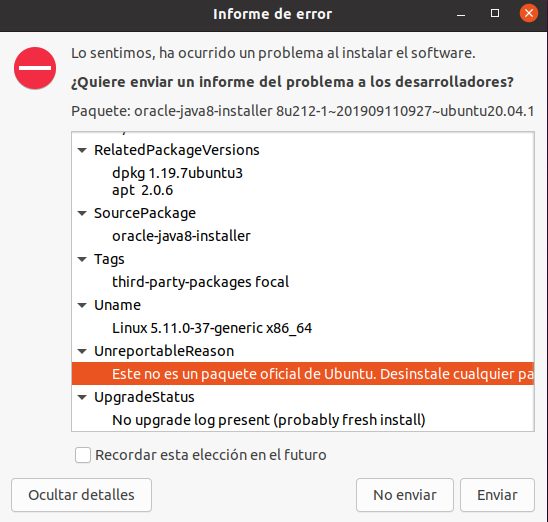
This is expected for third-party repositories.
To remove Java completely: [See StackExchange](https://askubuntu.com/a/185250/828892)
Portable pack starts in French. To change:
1. Log in to phpMyAdmin
2. Find "Paramètres d'affichage" (Appearance Settings)
3. Change "Langue" (Language) dropdown
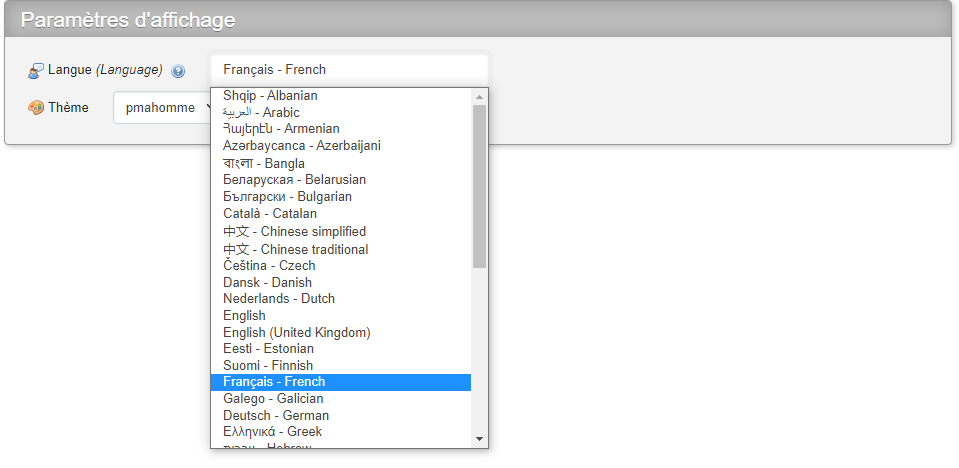
Uniform Server uses three `php.ini` variants:
* `php_test.ini`
* `php_development.ini`
* `php_production.ini` (default)
Changes must be made to the active configuration file.
## Important Notices
**Backup Before Installing:**
If you have previous versions of uniOPOS or its components installed:
* Backup databases and configurations
* Stop related services
* uniOPOS may remove previous installations
**Architecture Requirements:**
* Some packages only support 64-bit architecture
* Backward compatibility to Windows 10 not guaranteed
**Disclaimer:** Maravento Studio has no relationship with uniCenta oPOS developers. This installer is open source, sponsored by [Uniopos SAS](https://co.linkedin.com/in/lancord). Only the sponsor may use it commercially.
## Additional Resources
Official installation requirements
Official configuration guide
This documentation is built and hosted on [Mintlify](https://mintlify.com), a developer documentation platform.